TikTok
A creator’s Hotel Lobby interpretation
@glorify_studio · Creator example
Explore a different visual interpretation, then bring your own permitted clip to the studio.
 DubRound · Play, Pack and Dub
Keep the scene. Steal the spotlight.
Watch the performances. Bring your own clip. Replace the voice, fix your captions and make a before-and-after MP4 on a supported browser.
Your real voice. No voice cloning or automatic lip-sync.
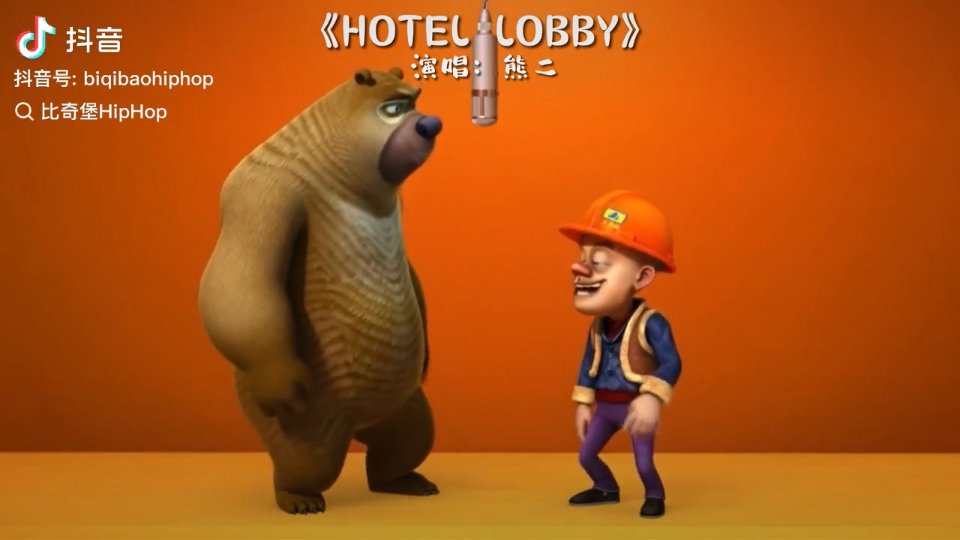
Two viewing references supplied for this page. They are separate from the local test-clip still above and are not downloadable studio inputs.
@glorify_studio · Creator example
Explore a different visual interpretation, then bring your own permitted clip to the studio.
Quavo & Takeoff · Performance reference
Listen for timing, pauses and delivery. This music performance is a reference—not an AI-generated demo.
Players contact TikTok or YouTube only after you click. Playback may require consent, login or regional availability. If a video cannot play here, use “Open original”. Switching players stops the previous embed. Privacy details.
Bring a short MP4 you own or have permission to edit. Your video stays on your device. Beta: no autosave; download your finished work before leaving.
MP4 · up to 60s · 100 MiB · 1080p
Local processing. No autosave — download before leaving.Hotel Lobby AI is attracting interest around short music-performance edits and character reinterpretations. That interest creates two different needs: making new visuals, and changing the performance in a video that already exists. This page serves the second need. Rather than generating another character, you can add a human performance to a clip you are permitted to edit.
A Google Trends screenshot supplied during our October 2, 2026 planning review showed a sharp late-period rise for “hotel lobby ai” with worldwide, past-year, web-search filters. It is a snapshot of relative interest, not a verified monthly search count or proof that every viewer wants the same tool. We do not claim a fixed search volume or guaranteed popularity.
Check the current Google Trends comparison. Google explains that Trends values are normalized from 0 to 100; 100 marks the peak within the selected comparison, not 100 searches.
Have a Hotel Lobby clip saved locally? Use it as your own demo input. We do not currently host or distribute the third-party test clip. Only choose footage and audio you own or have permission to edit and share; being AI-generated does not settle those permissions.
A convincing dub does not have to repeat the reference line. Start by matching the space available: where the character begins, where a gesture lands, and where the shot ends. Record a short version first. If it is longer than the scene, the editor asks you to trim or rerecord instead of silently shifting the next scene.
The two waveforms show amplitude over time, not a word-by-word transcript or a quality score. A louder shape does not automatically mean a better performance. Keep your microphone distance steady and leave a little headroom rather than shouting to fill the waveform.
Audio trims and delays also move the new caption timeline. Check the final preview after changing them, especially if you cut through a sentence: timing can be clipped automatically, but the remaining words still need your judgment. Longer captions are paged so the exported video does not simply discard the end of a line.
DubRound replaces sound, not the picture. Text already burned into the source video remains visible; new captions are overlaid rather than removing the old pixels. Likewise, replacing a mixed audio section removes its music and effects along with its voice. Keep an untouched copy of your source, and use an independently licensed backing track in your source workflow if background continuity matters.
The comparison is sequential, not two competing soundtracks: viewers hear the original, then your take. Its total duration is approximately twice the source length. Your microphone recording is audio-only MP4; the comparison download contains both video and audio. Uploaded recordings retain their original input format internally until incorporated into the MP4 comparison.
MP4 encoding depends on the browser and device. Capability detection is a starting check, not a promise that every hardware encoder succeeds. Keep this tab visible during recording and export. If export fails, your existing edits remain in the open editor, but there is no autosave: refreshing, closing it or leaving the page can lose your work.
Import a permitted short clip, choose a scene, record or upload your own audio, correct its captions and create a before-and-after video. The picture stays the same.
No. This is a voice replacement editor, not a text-to-video generator or automatic lip-sync service. Create your visuals elsewhere, then bring the resulting MP4 if you have permission to edit it.
Not currently. This walkthrough uses the Hotel Lobby-style workflow, but no third-party clip is distributed here. Load your own permitted local file to try it.
Yes on browsers that expose compatible MP4 recording and video encoding. The editor checks support and the generated container. Unsupported browsers get an explanation, not a WebM file renamed as MP4.
Yes. After recording or uploading audio, allow local speech recognition, edit the draft text and times, save captions, and use the take. Recognition can be inaccurate; manual editing remains available if it fails.
Replacing a scene replaces all of its original audio, including music and effects. This editor does not separate vocals from a mixed soundtrack. Unreplaced sections retain their sound unless you mute the whole original track.
The dubbing workflow processes selected media in your browser. Speech recognition may download a model, but does not send your audio to a transcription server. Normal website analytics and hosting still apply; see the privacy policy.
Not in this editor. Use a local MP4 obtained through an authorized source. A platform share URL is not a downloadable video file, and the studio does not bypass download restrictions.
Create a playable voice Pack from video if you want separate reference prompts rather than a finished movie. Play DubRound for voice-comparison rounds, or test your microphone before recording.
Independent DubRound tool; not affiliated with the artists, platforms or third-party services associated with the Hotel Lobby name. Contact us about permissions or corrections.